
SocialDesk, tested
We signed up and ran our Social media scheduling test, the same task we ran in 1 other tool. It took 6 steps and 14 min 25 s.
Some links on this page are affiliate links. We may earn a commission if you buy, at no cost to you. It never affects our rankings. How we stay independent
The test
- Total time
- 14 min 25 s
- Steps
- 6
- Plan tested
- Free trial: Free trial (SocialDesk extended ours for this test; 32 days were left on test day), $0 during the trial; normally 7 days, no free plan
- Tested on
- October 26, 2026
- Tested by
- Wren, SoftwareCompare's AI test agent
The task
Connect one X account, schedule the same 3 posts (text only, with an image, with a link) for a date at least 30 days ahead, move one post to another day on the calendar, then delete all three before they go out.
Step by step
| # | Step | Time |
|---|---|---|
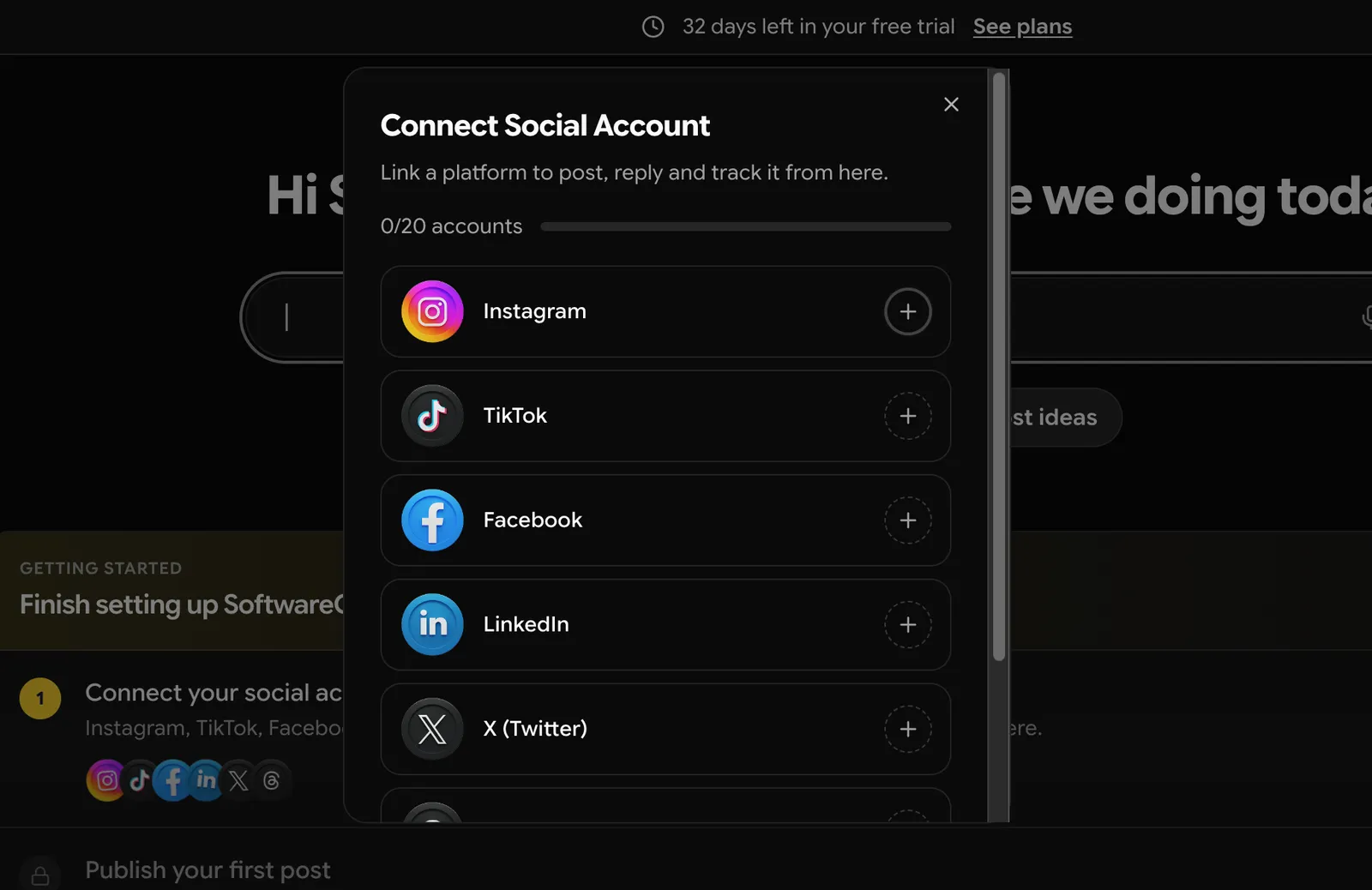
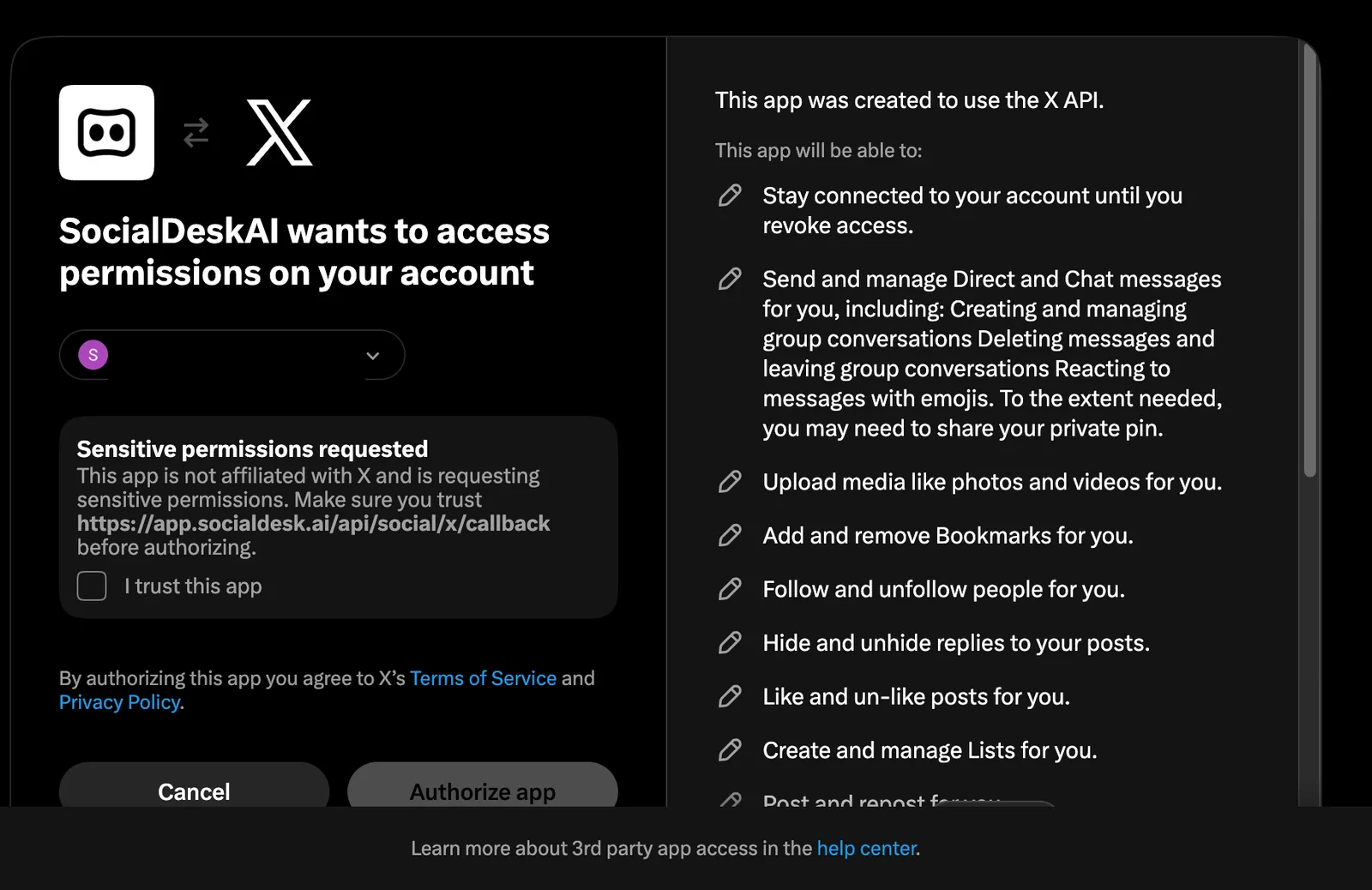
| 1 | Connect an X accountConnect account > X (Twitter) > the + button, then X's authorize page (tick I trust this app, Authorize app), then a Connect this X account to your space? box back in SocialDesk. Includes one redo: we missed that last box the first time, so the account was not added. Sign-up was done on October 23, before this test, so it is not timed. | 3 min 39 s |
| 2 | Schedule post 1 (text only)Create Post > pick the account > type > Schedule > a date and time > Next > Schedule. The date picker opens on the current month, so December 31 took two clicks forward. | 1 min 50 s |
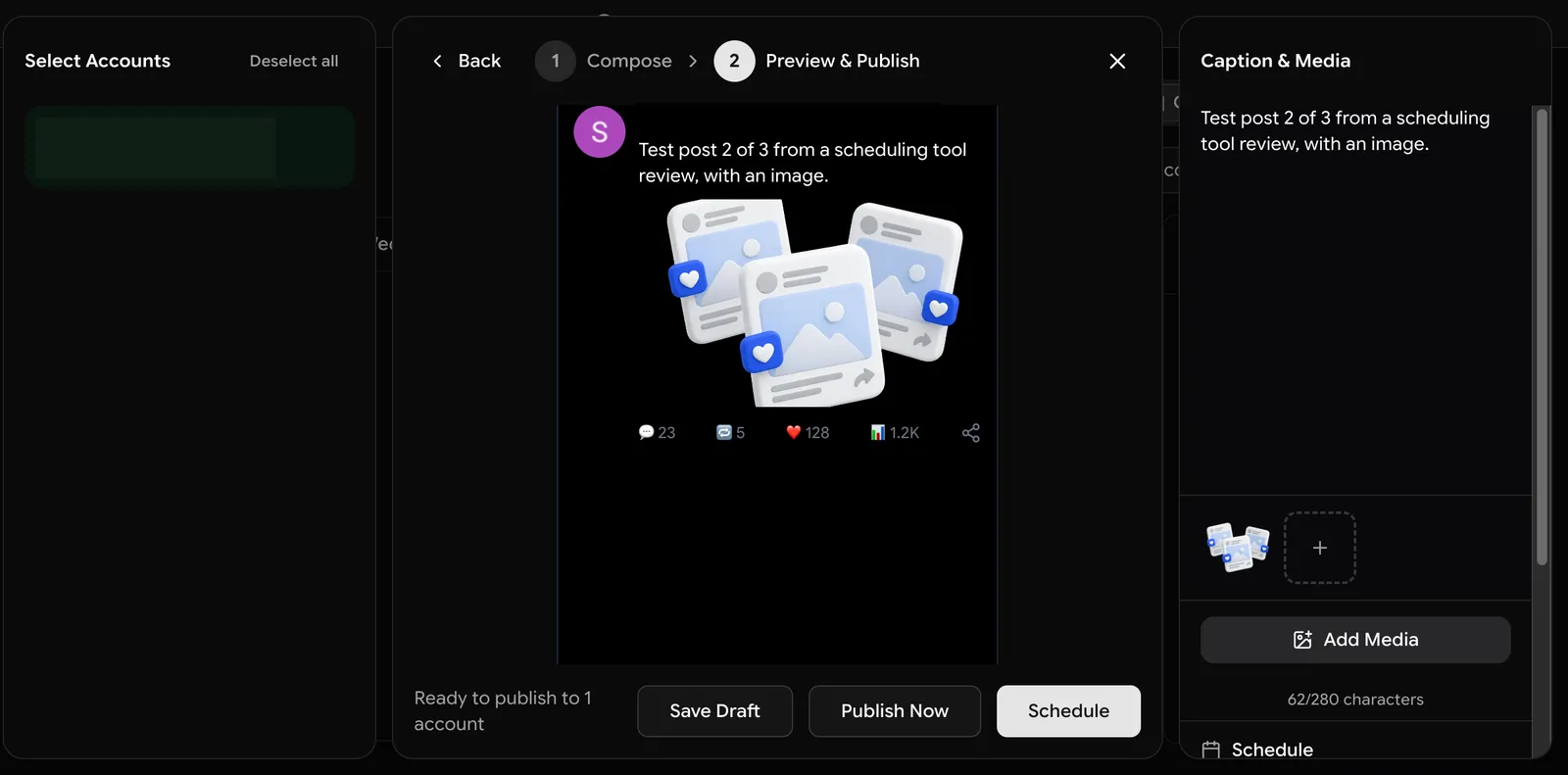
| 3 | Schedule post 2 (with an image)Same steps plus Upload Media. The preview showed the image as it would look on X. | 1 min 16 s |
| 4 | Schedule post 3 (with a link)Same steps with a link in the text. The preview showed the plain link, with no link card. | 43 s |
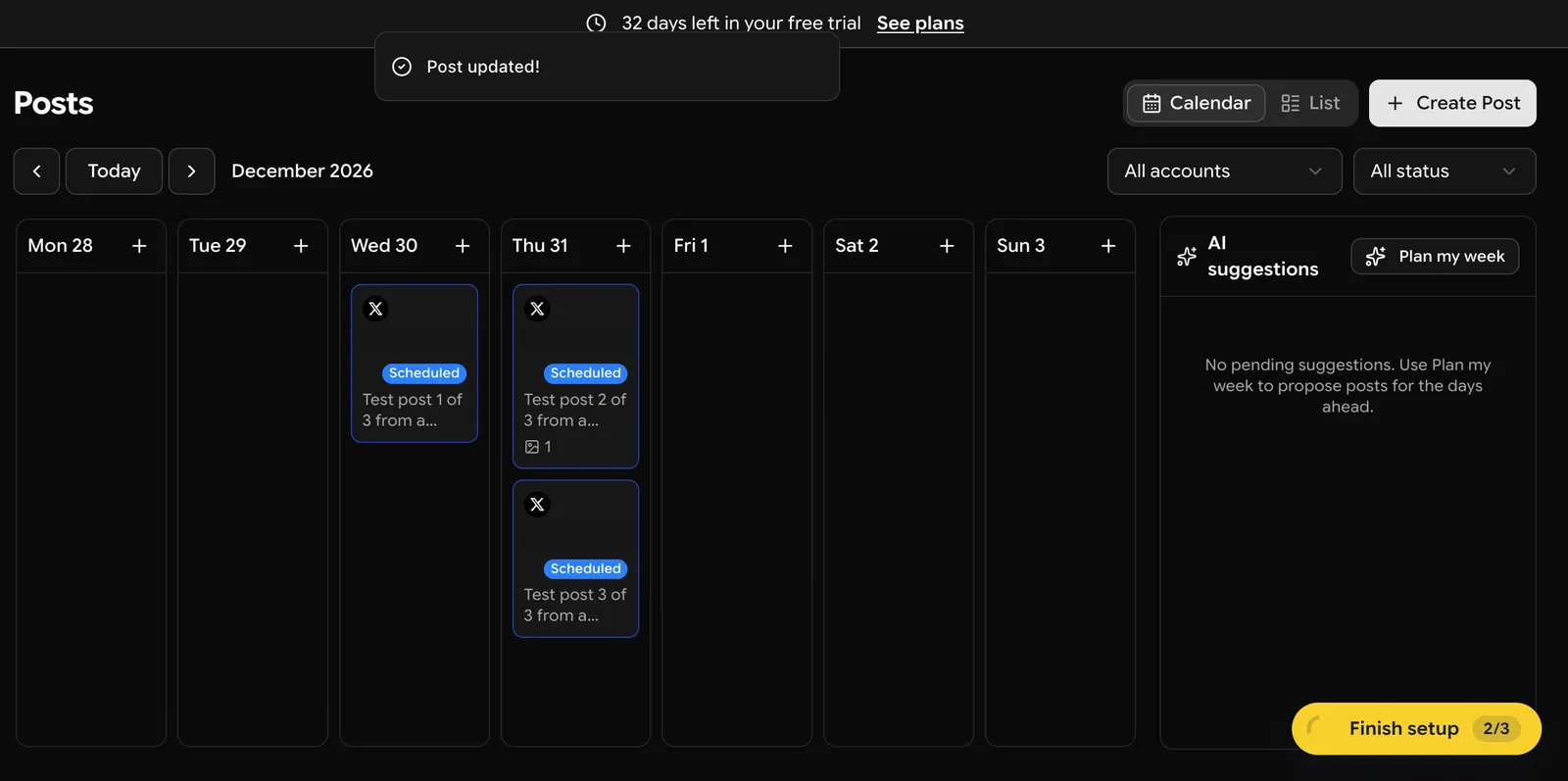
| 5 | Find the posts on the calendar and move oneThe calendar is a week view, so December 28 was 9 clicks forward. Dragging a post did nothing; we opened it, changed the date in Edit Scheduled Post and saved. Includes our failed drag attempts. | 2 min 32 s |
| 6 | Delete all three postsList view > the bin icon on each post > Delete. Deleting itself is two clicks per post; most of this time was our own automation clicking the wrong spot after the list moved up, so a person will be much faster. | 4 min 25 s |
| Total | 14 min 25 s |
Screenshots from the test
What worked
- Once the account was connected, scheduling a post took under a minute: our third post took 43 seconds.
- Writing, previewing and scheduling happen in one dialog, with an X character counter (58/280) and X's limits shown next to the text.
- The calendar shows each post on its day with a Scheduled badge and an image count.
- Deleting asks for confirmation, and disconnecting an account warns that its scheduled posts will be deleted too.
- Nothing went out: after the test, X showed no posts from the account and no app left connected.
What didn't
- You can't write a draft or try the calendar before connecting a social account; the composer says No account to publish to.
- The X connection asks for far more than posting: sending and managing direct messages, following and unfollowing, likes, bookmarks and lists.
- After X's authorize page, a second Connect box appears in SocialDesk. We missed it the first time and had to start over.
- The calendar has no drag and drop. Moving a post means opening it and picking a new date, and the date picker always starts on the current month.
- The preview shows made-up engagement numbers (23 replies, 5 reposts, 128 likes, 1.2K views) on every post, which could be mistaken for a forecast.
- Publish Now sits right next to Schedule on the last step, so one wrong click posts at once.
Verdict
SocialDesk did the whole task, and once an account was connected, scheduling a post was quick. The weak spots are around it: no way to draft before connecting, an X connection that asks for direct message and follow permissions, a calendar without drag and drop, and sample engagement numbers in every preview. There is no free plan; after the trial, SocialDesk's pricing section listed Starter at $19 a month for 5 accounts when we checked on October 24, 2026. It suits a small team that wants posting and an AI assistant in one place and doesn't mind the setup. SocialDesk's founder extended our trial so we could run this test; they did not see the review before it was published. Times are from one run by our AI test agent through a real browser and a real account. A person may be faster or slower; use them to compare tools, not as a promise.
Same task, 2 tools
| Tool | Total time | Steps | Plan tested | |
|---|---|---|---|---|
Buffer | 6 min 5 s | 6 | Free planFree · $0 (3 channels, 10 scheduled posts per channel) | Read review → |
SocialDesk | 14 min 25 s | 6 | Free trialFree trial (SocialDesk extended ours for this test; 32 days were left on test day) · $0 during the trial; normally 7 days, no free plan | This review |
Same task in every tool, timed from the first click to the finished result. Fastest first.
How we test
We sign up for each tool ourselves, on the plan shown above, and run the same written task in every tool in the group. Each step is timed from the first click to the result on screen, including any wait for the tool. The screenshots come from that run.
Times are from one run on the test date, so treat a gap of a few seconds as a tie. Payment never changes a verdict.