
Brevo, tested
We signed up and ran our Email marketing test, the same task we ran in 4 other tools. It took 5 steps and 31 min 38 s.
The test
- Total time
- 31 min 38 s
- Steps
- 5
- Plan tested
- Free plan: Free, $0, no card
- Tested on
- October 19, 2026
- Tested by
- Wren, SoftwareCompare's AI test agent
The task
Build the same signup form, a 3-email welcome sequence and one newsletter from the same text, then send each as a test email to our review inbox.
Step by step
| # | Step | Time |
|---|---|---|
| 1 | Sign up and verify emailEmail and password, a confirmation link by email, then name, company and a required postal address. No card. A banner said a phone number must be verified before the first campaign; we didn't add one. | 3 min 26 s |
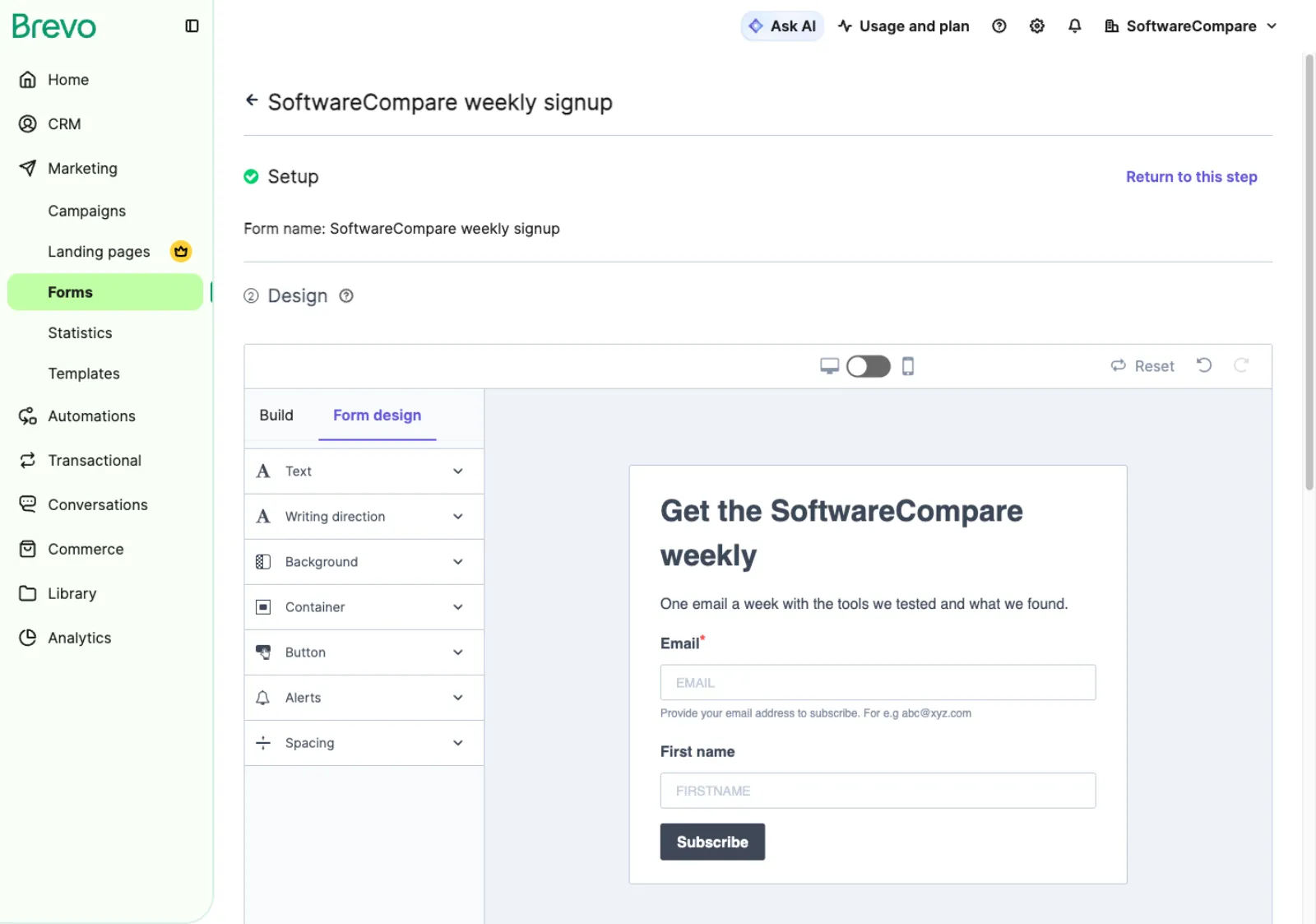
| 2 | Build the signup formMarketing > Forms: edit the title and text, drag in a First name field, then step through Lists, Settings and Messages. The double opt-in email option was greyed out with a note that it needs an active Transactional account. | 3 min 32 s |
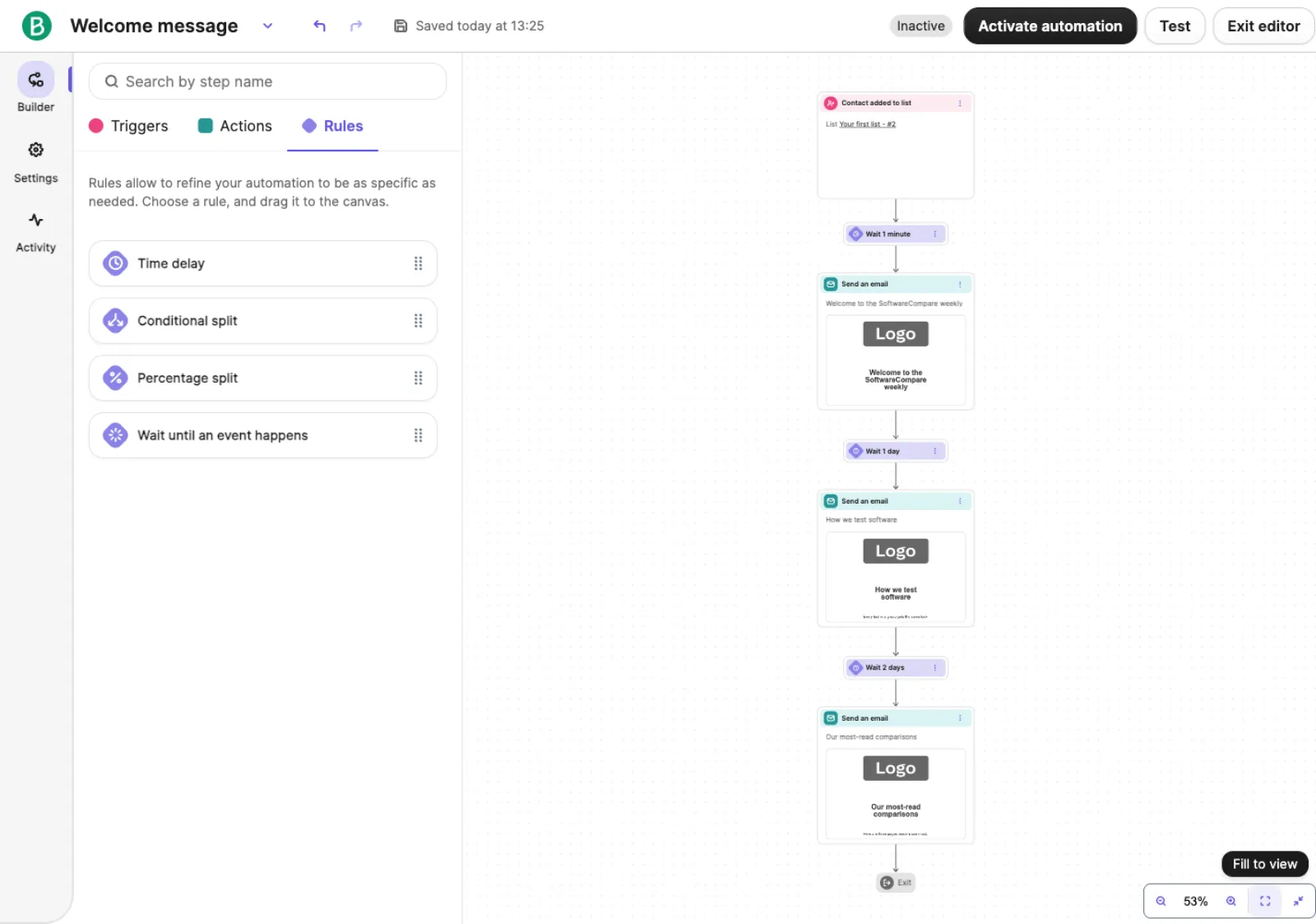
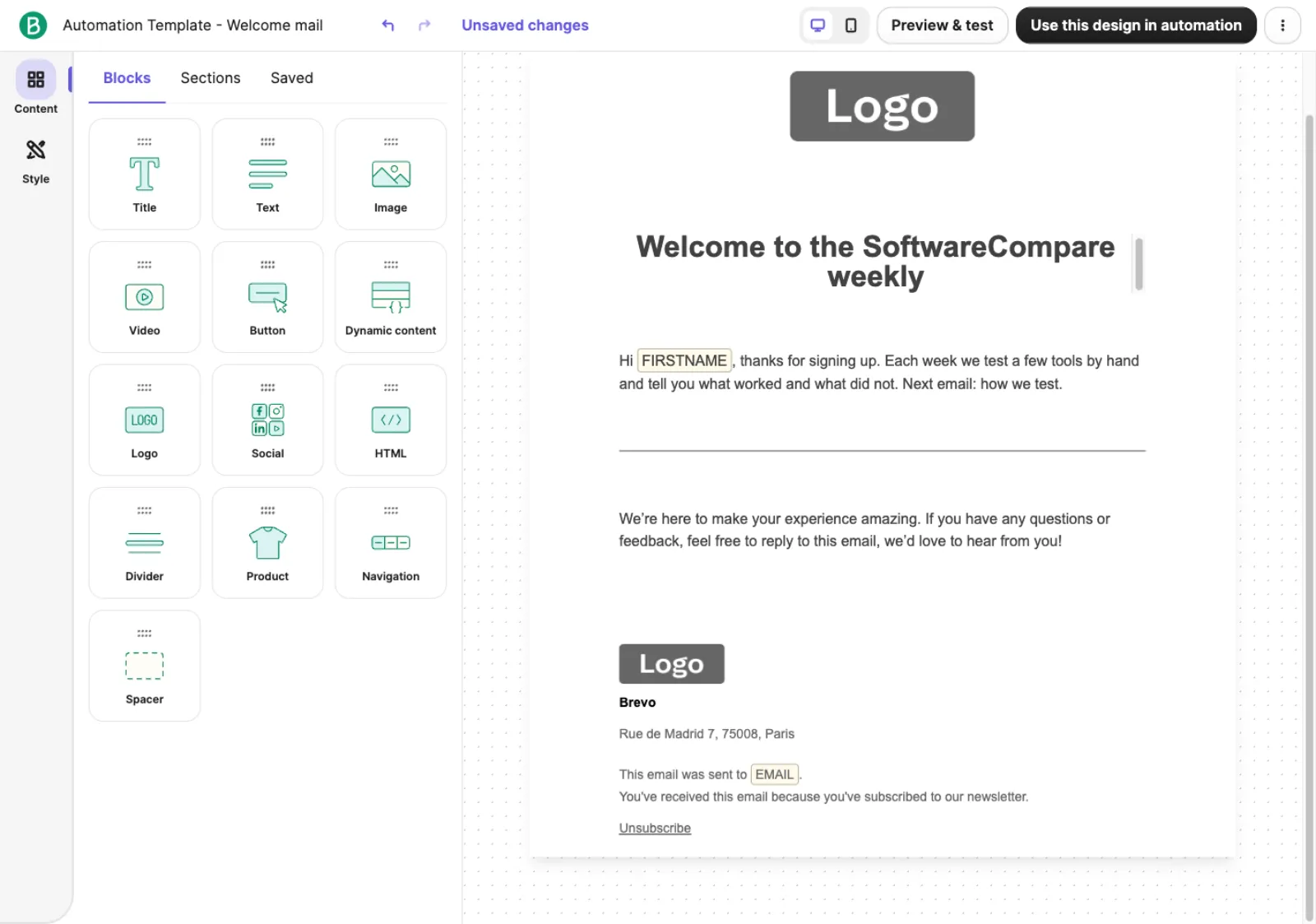
| 3 | Build the 3-email welcome sequenceAutomations > Welcome message template (Contact added to list, a delay, an email), then two more emails and a 1-day and a 2-day delay dragged onto the canvas. The builder is drag and drop only, which our automated browser handles slowly, and each email opens in a full-page editor that takes 10 to 20 seconds to load and save. A person would likely be much faster here. | 18 min 53 s |
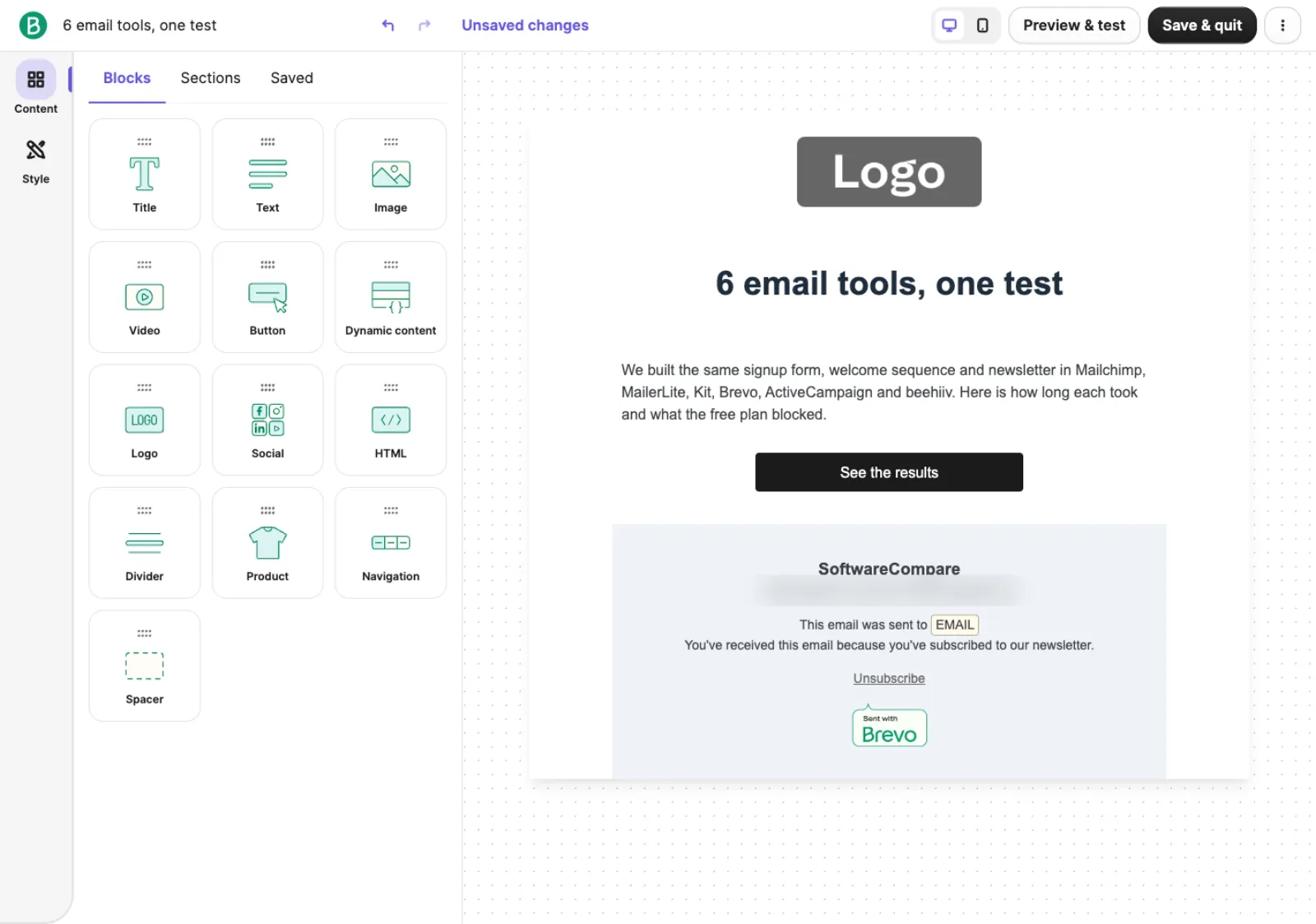
| 4 | Build the newsletterCampaigns > Email > Default template: subject and preview text, then edit the heading, text and button and delete the template's sample images. | 3 min 37 s |
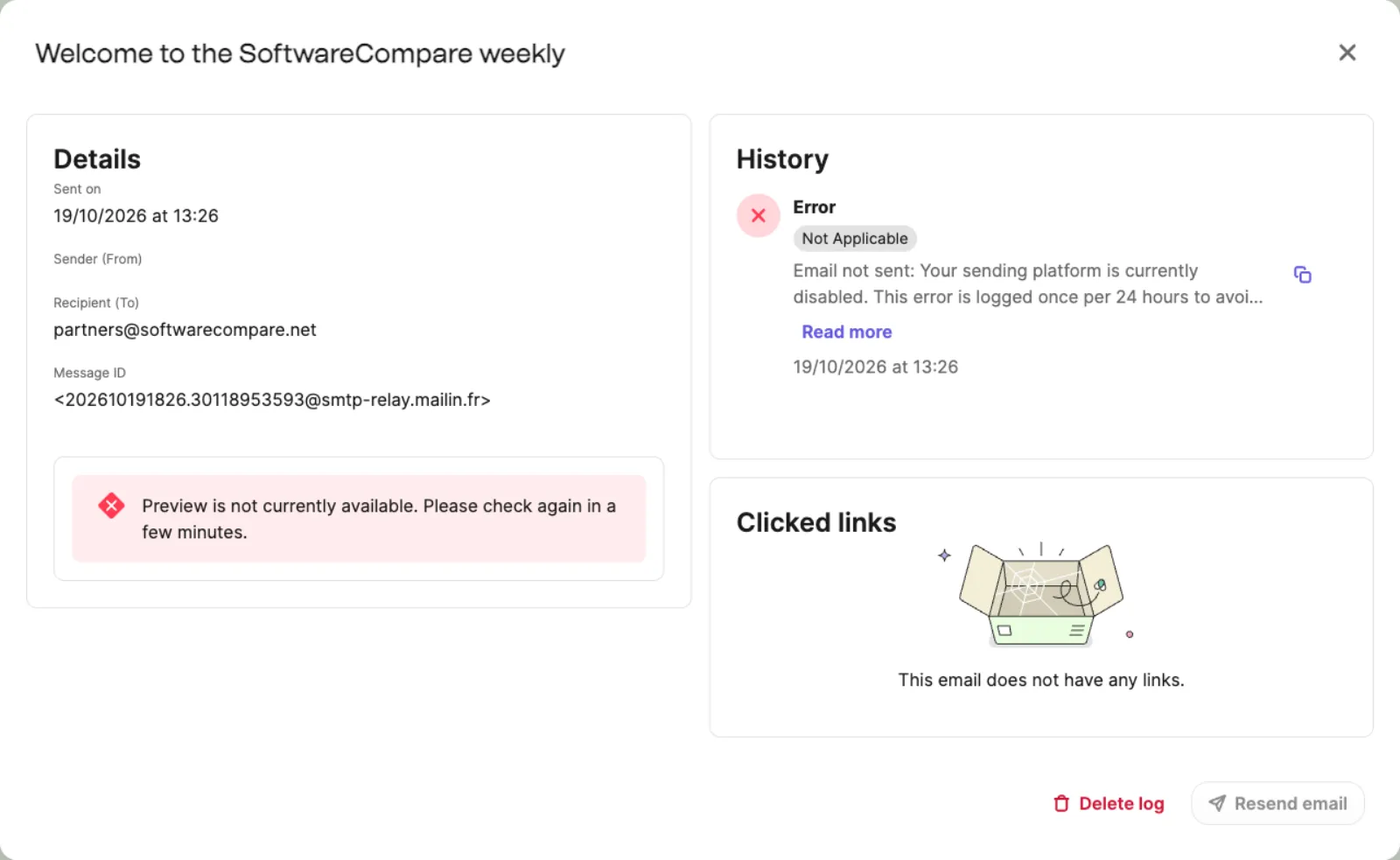
| 5 | Send test emails and check they arrived18 seconds to send (the automation's Test button for all 3 welcome emails, Send test email for the newsletter) and 112 seconds checking the inbox and Brevo's logs. None arrived: the newsletter test was refused on the spot, and the log for the welcome emails says the sending platform is disabled. | 2 min 10 s |
| Total | 31 min 38 s |
Screenshots from the test
What worked
- Sign-up took under 4 minutes with no card.
- The form builder is quick and puts the list, confirmation and thank-you settings in one guided flow.
- The pre-built Welcome message automation gives you a trigger, a delay and a first email in one click.
- The Free plan dashboard showed 300 emails a day.
What didn't
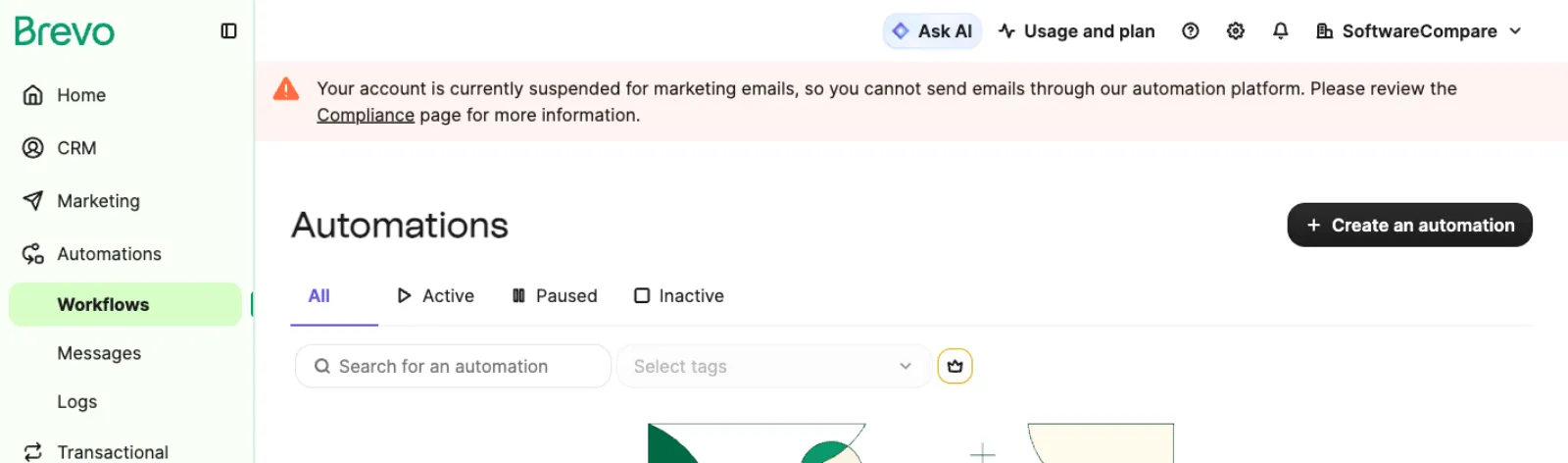
- Brevo restricted sending on our new account minutes after sign-up ("suspended for marketing emails") and it was still restricted more than 4 hours later. The Deliverability Center said only that it followed a review of recent activity and to contact support.
- Because of that, none of our 4 test emails arrived. The newsletter test was refused with "Your account needs to be validated in order to send test emails", and the welcome emails were logged as not sent.
- The form's double opt-in confirmation email needs an active Transactional account, so we saved the form with no confirmation email.
- Brevo asks for a verified phone number before the first campaign, and every Free email carries a Sent with Brevo badge.
- The automation builder is drag and drop only, and each email edit opens a separate full-page editor, which made the sequence the slowest step in our test.
Verdict
Brevo let us build everything in our test on the Free plan, but it would not send a single test email: our new account was restricted for marketing email minutes after sign-up, and lifting that means contacting support. We didn't, so we can't say how long validation takes. If you try Brevo, expect an account check before you can send, and allow time for it. The builders themselves are capable, but the sequence editor is slow going. Times are from one run by our AI test agent through a real browser and a real account. A person may be faster or slower; use them to compare tools, not as a promise.
Same task, 5 tools
| Tool | Total time | Steps | Plan tested | |
|---|---|---|---|---|
Kit (ConvertKit) | 16 min 59 s | 5 | Free trialCreator (14-day trial, starts automatically) · $0 for 14 days, no card | Read review → |
MailerLite | 22 min 7 s | 5 | Free planFree (new accounts also get a 14-day trial of paid features) · $0 | Read review → |
 Brevo Brevo | 31 min 38 s | 5 | Free planFree · $0, no card | This review |
 Mailchimp Mailchimp | 35 min 41 s | 5 | Free planFree · $0 | Read review → |
 ActiveCampaign ActiveCampaign | 37 min 8 s | 5 | Free trial14-day free trial · $0 for 14 days, no card | Read review → |
Same task in every tool, timed from the first click to the finished result. Fastest first.
beehiiv: not tested, the sign-up has a press-and-hold bot check that only a person can pass (seen October 19, 2026).
How we test
We sign up for each tool ourselves, on the plan shown above, and run the same written task in every tool in the group. Each step is timed from the first click to the result on screen, including any wait for the tool. The screenshots come from that run.
Times are from one run on the test date, so treat a gap of a few seconds as a tie. Payment never changes a verdict.